Sales portal and product access
Goal and requirements
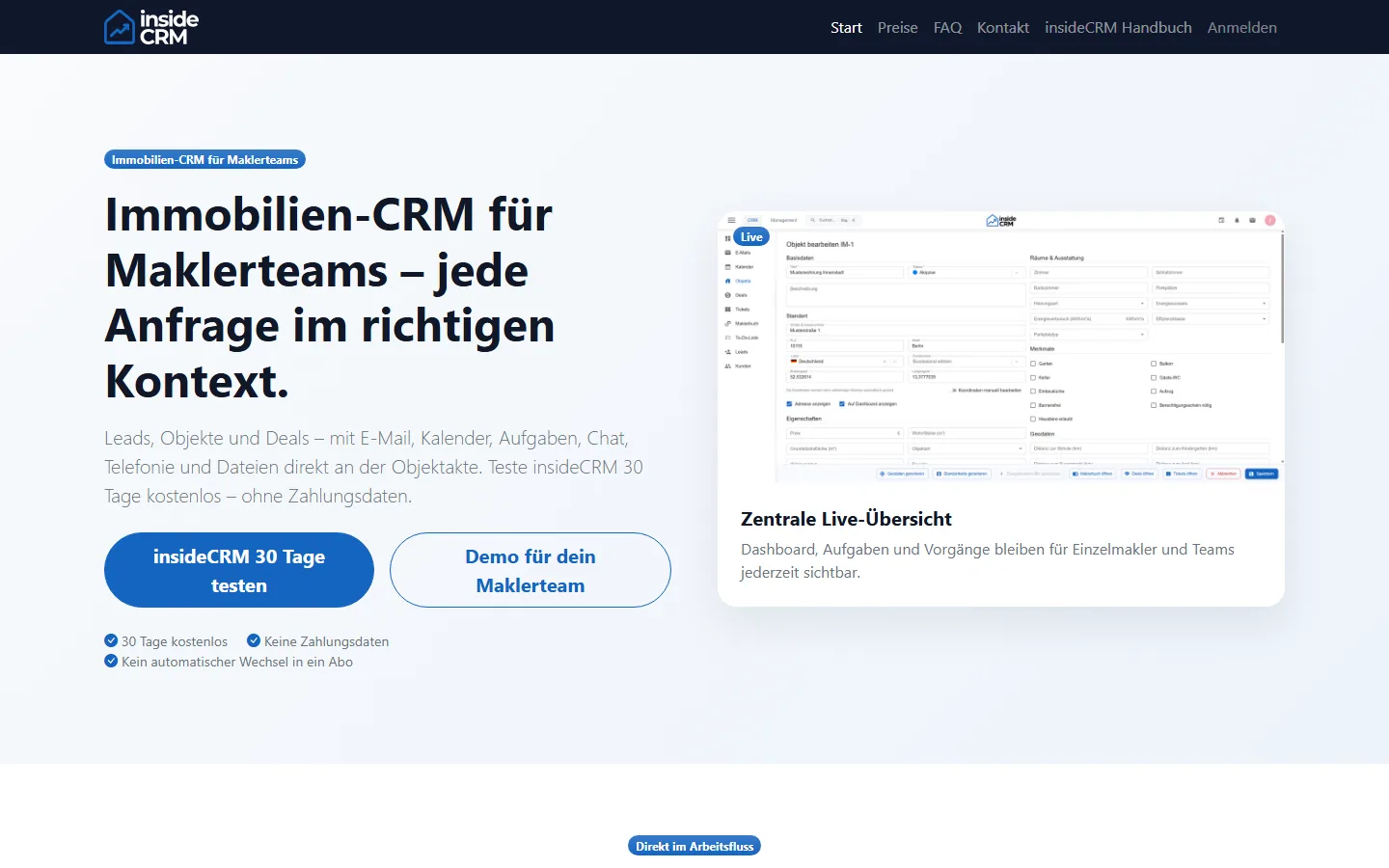
Find product information, sign in to the sales portal and launch the intended tenant. Public content requires no account; trials, profile and platform launch require a verified portal account and the correct organisation.
The sales portal connects public product information with the protected customer area. The platform data itself is processed in the selected client.
Find product information
- Compare product and price side features, billing period and included quotas.
- Use FAQ and manual for user questions, support for existing accesses and demo request for a guided presentation.
- Before purchasing, read contract documents, service description, data protection and cancellation information.
- Check in the address bar that you are on an official insideCRM domain.
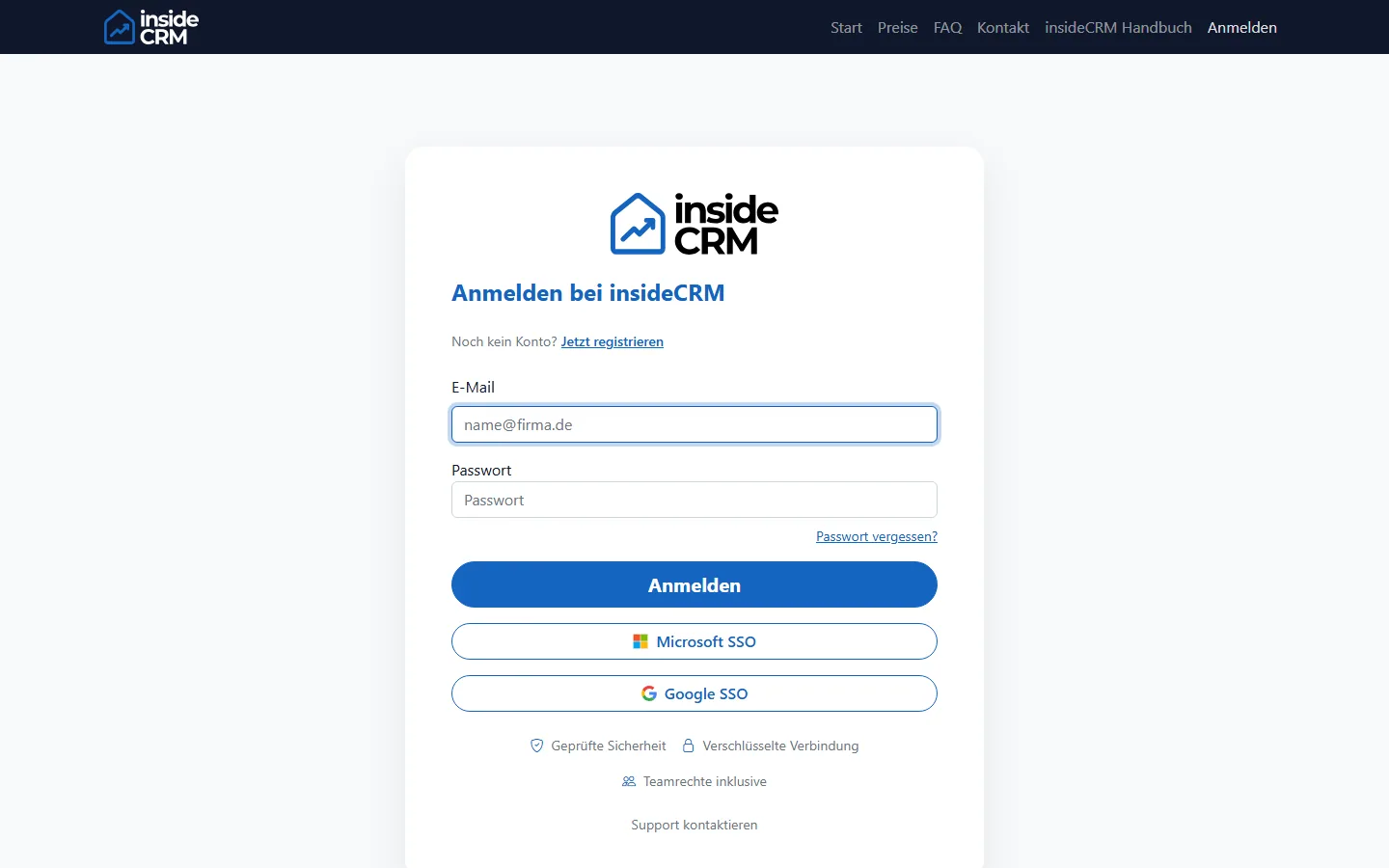
Portal access
- Register a customer account or log in with the already linked provider.
- Confirm email address and, if applicable, the second factor.
- Use Forget password when local access no longer works.
- Sign out after work if you are using a shared device.
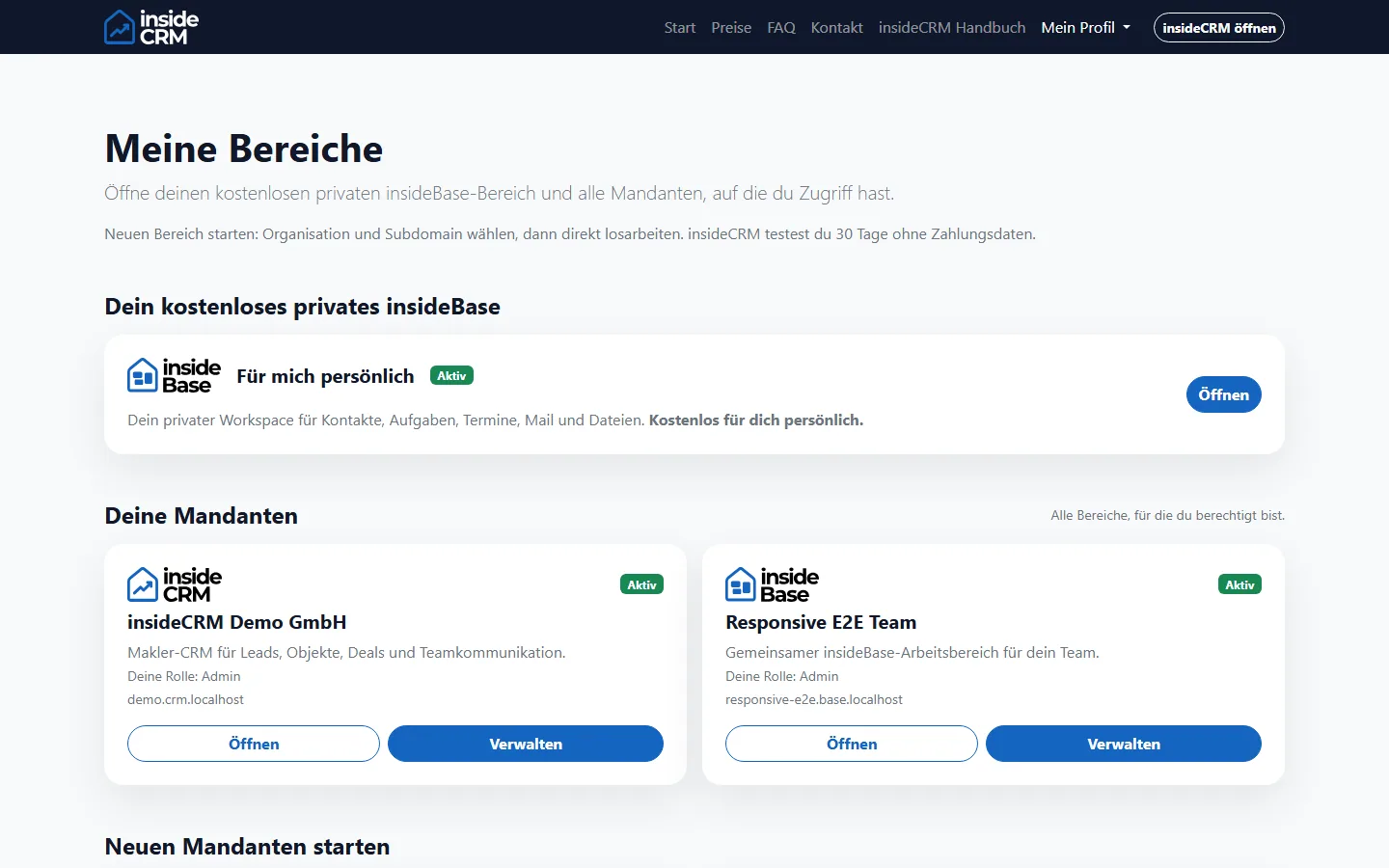
Launch a platform
- Open the platform hub after registration.
- Select insideBase or insideCRM and then select the desired organization or client.
- Create a test access only if you are eligible for the organization’s facility.
- Open the platform. A short-lived handoff starts the session there; credentials are never exposed in the URL.
Result
The correct product access is selected and the session in the target platform is active.
Troubleshooting
- For missing products, check organization, invitation and account holders.
- Allow necessary cookies if the transfer leads to the registration again.
- Do not open a second test client to bypass a missing authorization.