Log in, register and restore access
Goal and requirements
Sign in securely with the intended identity and open the correct workspace. You need a verified email address, the agreed sign-in method and, when enabled, access to the MFA method. Use only your organisation's product domain.
This guide goes from the first account to the right workspace. Access codes and recovery links are personal and may not be shared.
Sign in securely
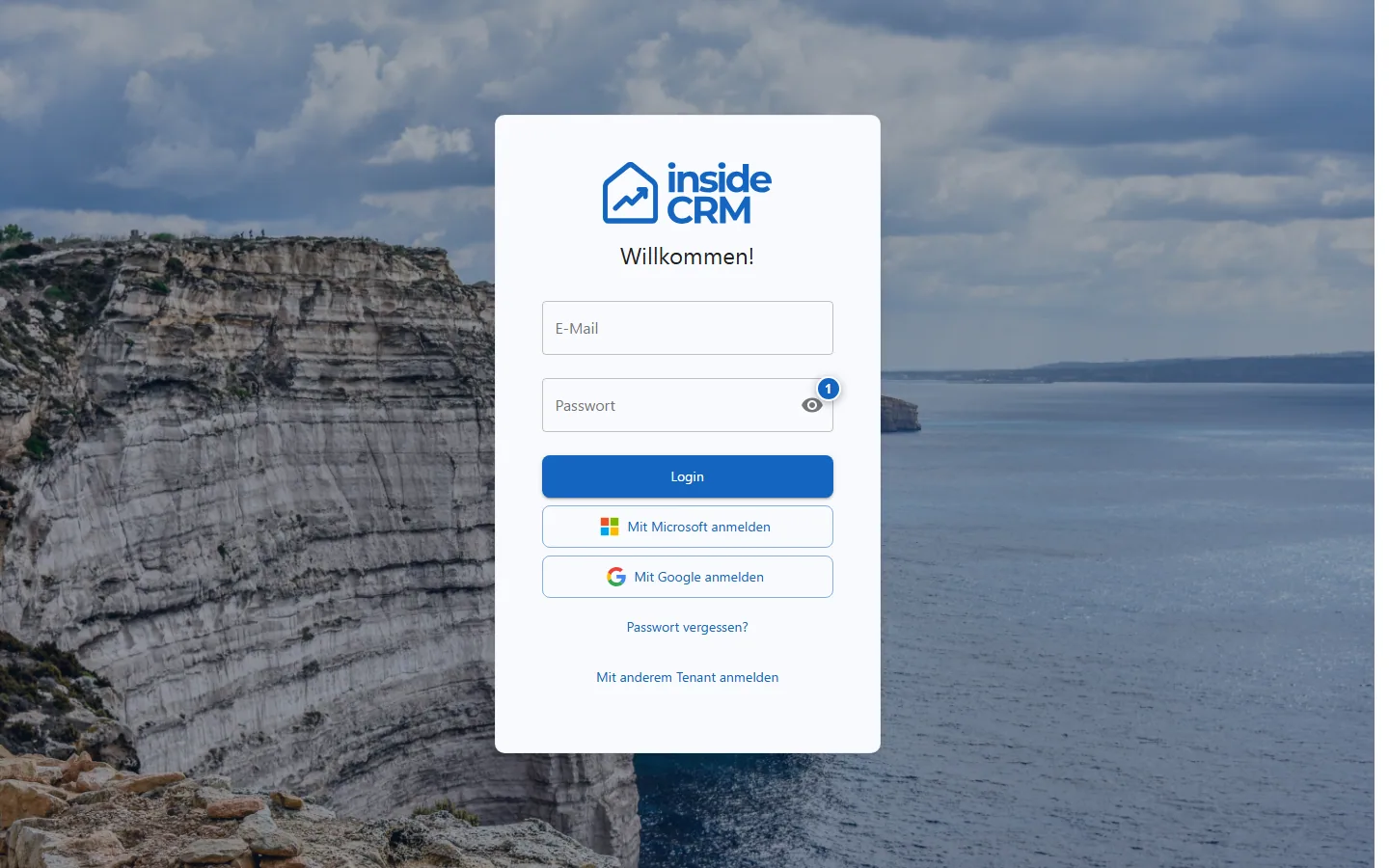
- Open your company’s web address or mobile app.
- Enter email address and password. Use an offered company login only for the corresponding account.
- If two-factor authentication is enabled, confirm the second factor.
- After forwarding, check product, organization, and workspace.
An already active session leads directly to the allowed starting area. A login link with short-lived token is processed only once.
Register account and confirm email
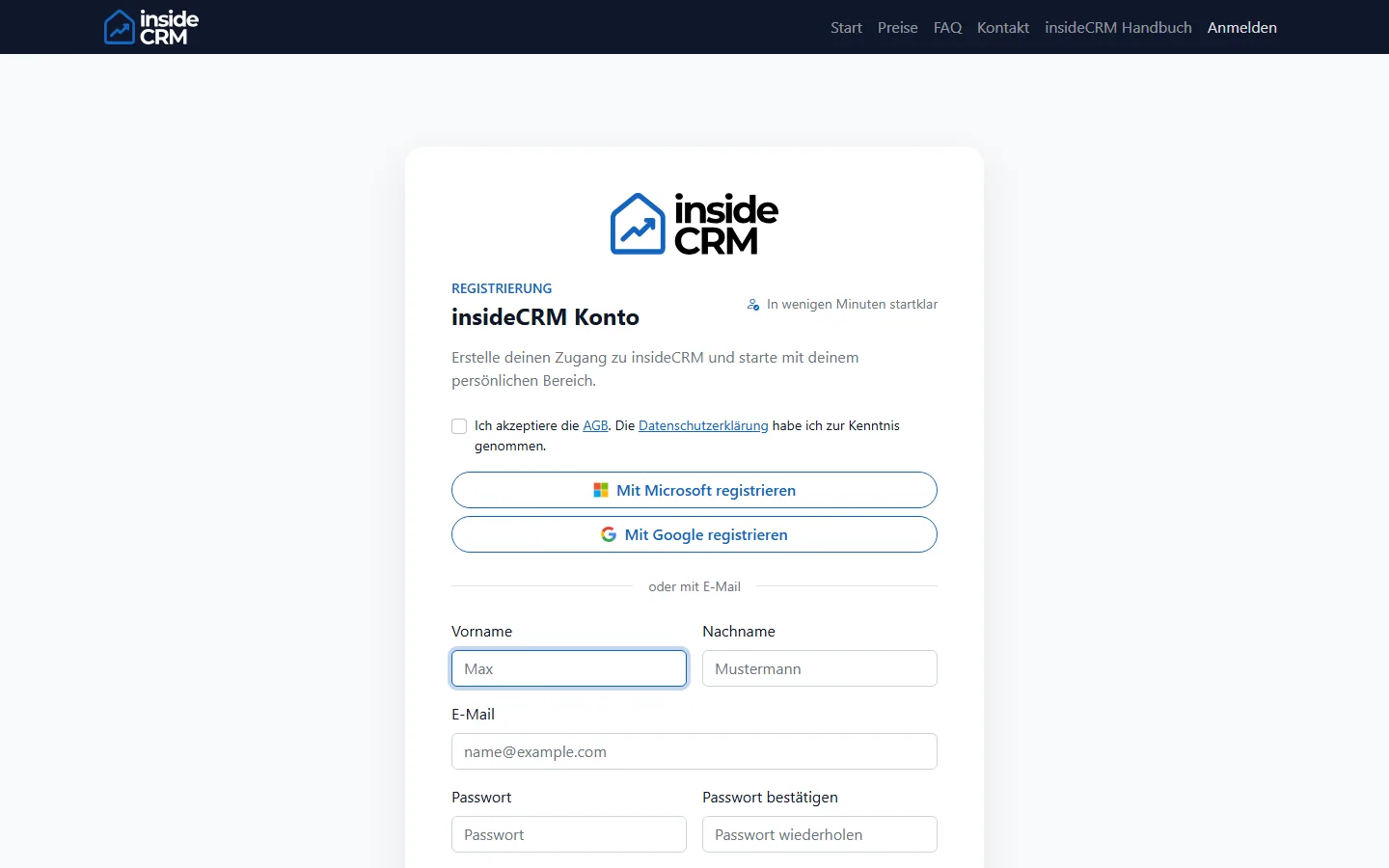
- Select Register and collect the requested contact information.
- Use an accessible business email address and a unique password.
- Open the confirmation message and follow the link on the same device.
- Sign in normally afterwards. If the link has expired, request a new one.
Registration does not grant access to other organizations. Access is activated through an invitation, assignment, or product setup.
Select workspace
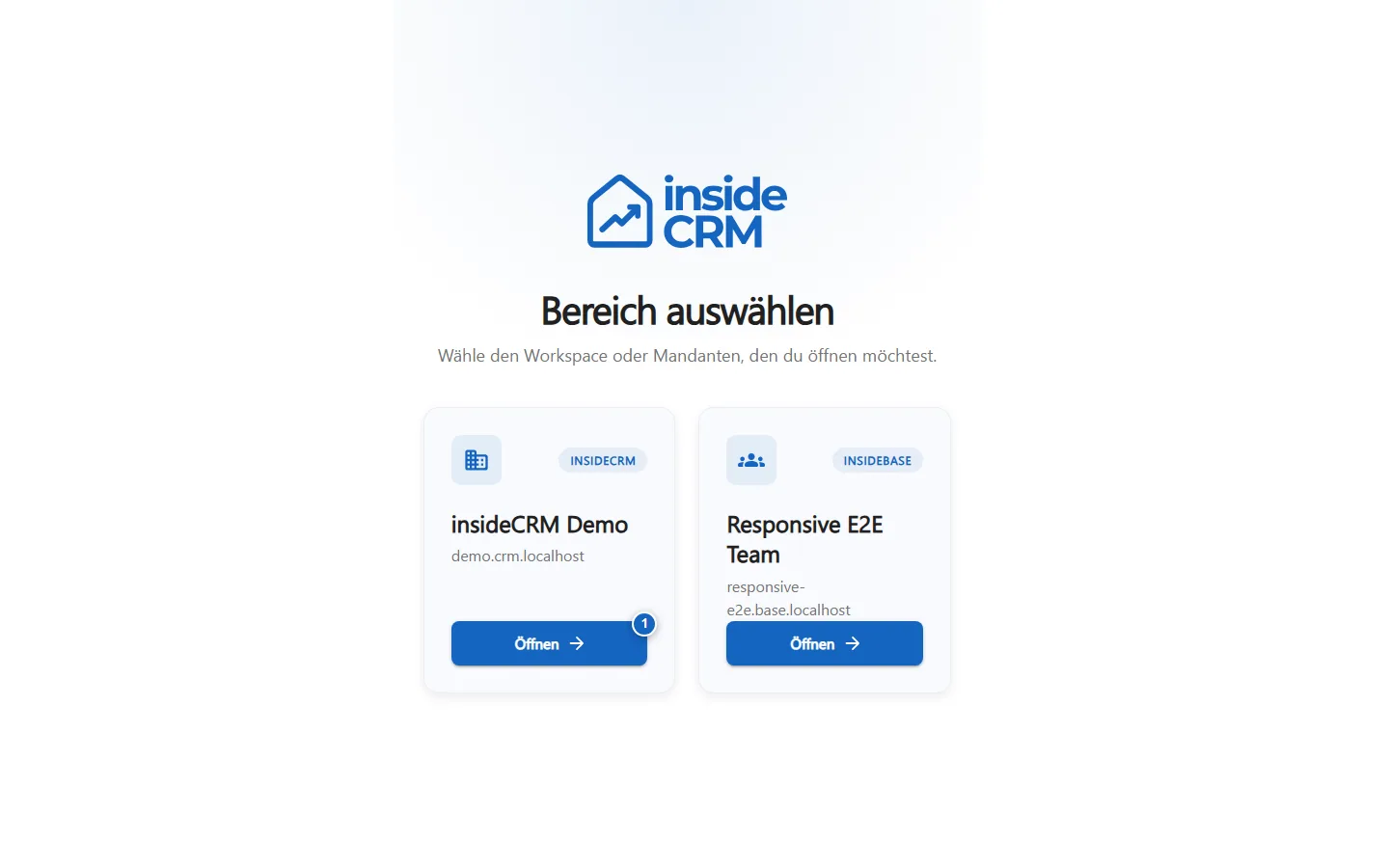
If your account is associated with multiple organizations or tenants, a selection will appear after you sign in.
- Compare product, organization and client name.
- Choose the area where you want to work.
- In the header area of the application, check whether the selection has been accepted.
If an expected workspace is missing, do not switch accounts. Ask an administrator to check the email address, invitation, and permissions.
Recover password
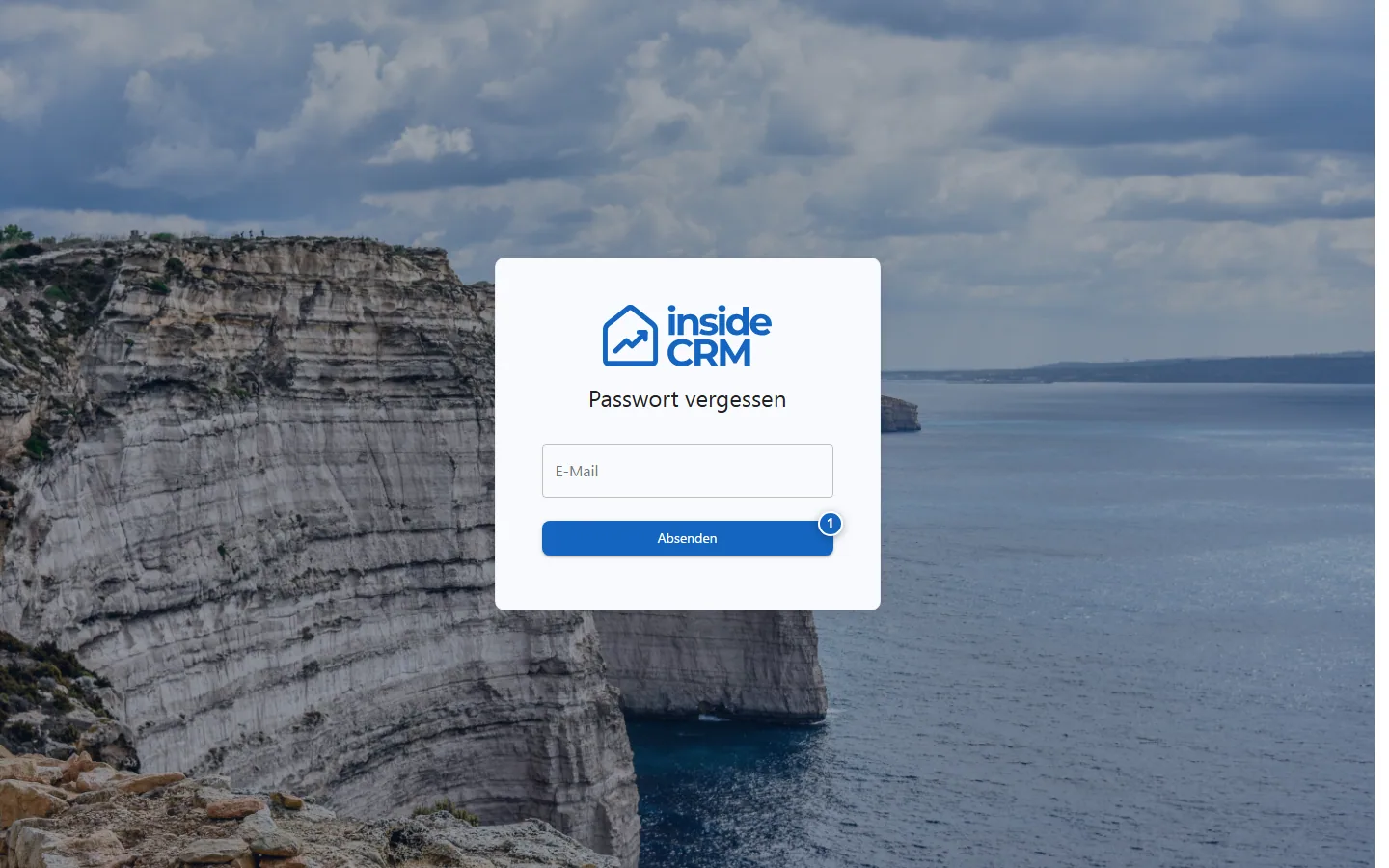
- Select Forgot password on the sign-in page.
- Enter the email address of the account. For security reasons, the confirmation does not reveal whether an account exists.
- Open only the latest restore link.
- Set a new, unique password and log in again.
An invitation link to set the password for the first time works similarly. Expired or already used links must be requested again.
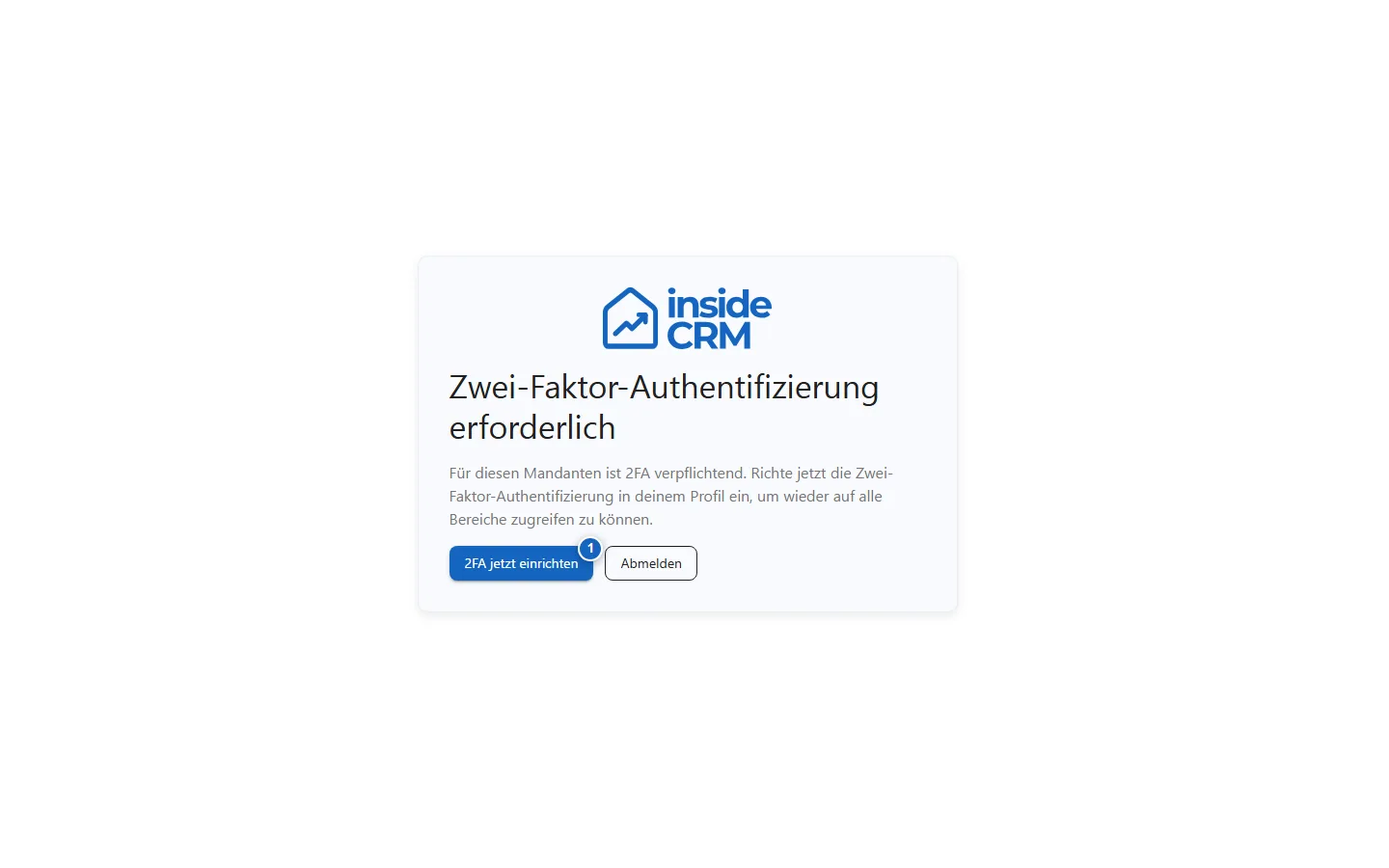
Complete two-factor authentication
- Open your Authenticator app and use the current six-digit code.
- Pay attention to the remaining validity time and transfer the code without spaces.
- Use a recovery code only if the second factor is not available.
- If the factor is permanently lost, ask an authorized administrator to reset it.
Result
The session is protected, the correct workspace is active and only the unlocked modules and data are visible.
Troubleshooting
- If the browser loops between sign-in and workspace selection, check whether cookies are allowed for the platform.
- For invalid links, always use the last message delivered.
- Check device time and time zone when one-time codes are rejected.
- Share error message, time and affected platform with support, never password or token.