Email and email accounts
Use requires the permissions mail.read to read and mail.write to connect or edit an account. Central templates and free texts require permission to manage settings.
Connect email account
- Open email accounts in the personal area.
- Select Microsoft, Google or a manual IMAP/SMTP connection.
- Follow the registration and consent dialogue with Microsoft or Google. Enter IMAP/SMTP servers, ports, security procedures and access data.
- Test the connection and save it.
Mailboxes can remain private or be shared with specific people. Members of a shared mailbox may read and reply; managers can also manage access and mailbox-wide actions. Disconnecting an account removes the connection, credentials, and synchronized messages, unlike merely hiding it.
Processing of messages
In Email, you can select folders, search, update, read messages, answer, respond to all, forward, archive, move, pin, and change the reading status. Global actions in a shared mailbox work for all authorized persons.
Send a new email
- Choose New email and the sender.
- Complete recipient, subject, message and, if necessary, Cc, Bcc or attachments.
- Optionally insert free text, signature or template.
- Check the preview and send the message or save it as a draft.
If offered, messages can be linked to contacts and an object. Check the assignment before saving.
Purpose
The email area connects message processing, personal email accounts and centrally maintained text modules.
Where to find it
Open Email, Personal menu → Eemail accounts or the email areas of the administration.
Requirements and permissions
Reading requires mail.read, sending and account management mail.write; central templates and free texts require settings.manage.
Step by step
Mailbox using
- Select Folder or Account and open a message.
- Check sender, recipient and attachments.
- Reply, forward, or write a new message.
- Check receivers and attachments immediately before sending.
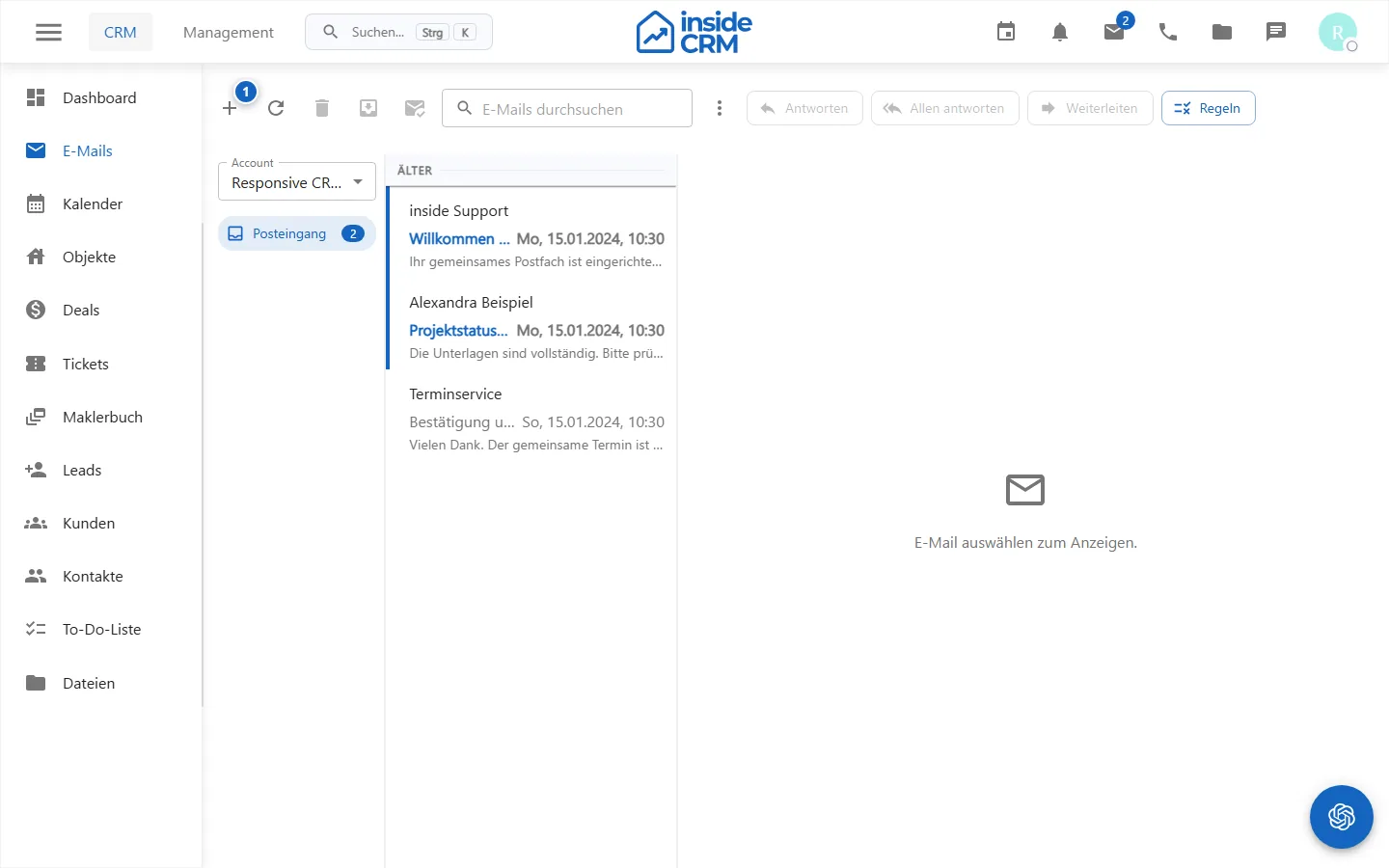
Manage email accounts
- Open email accounts and start the connection.
- Choose the provider and give only necessary approvals.
- After the return, check account name, status and syncing.
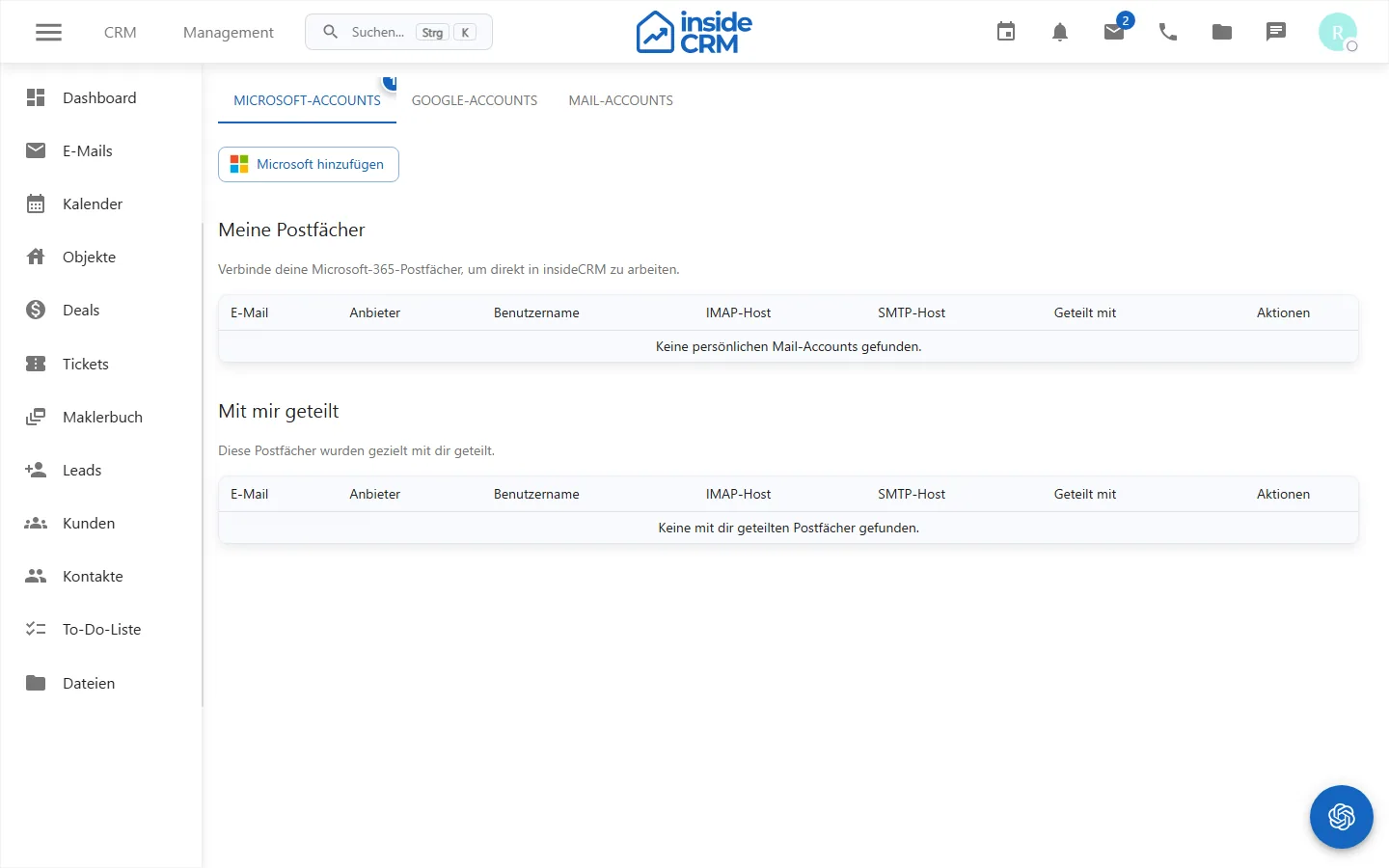
Manage mail templates
Create shared templates with a unique title and verified content. Test placeholders before publishing.
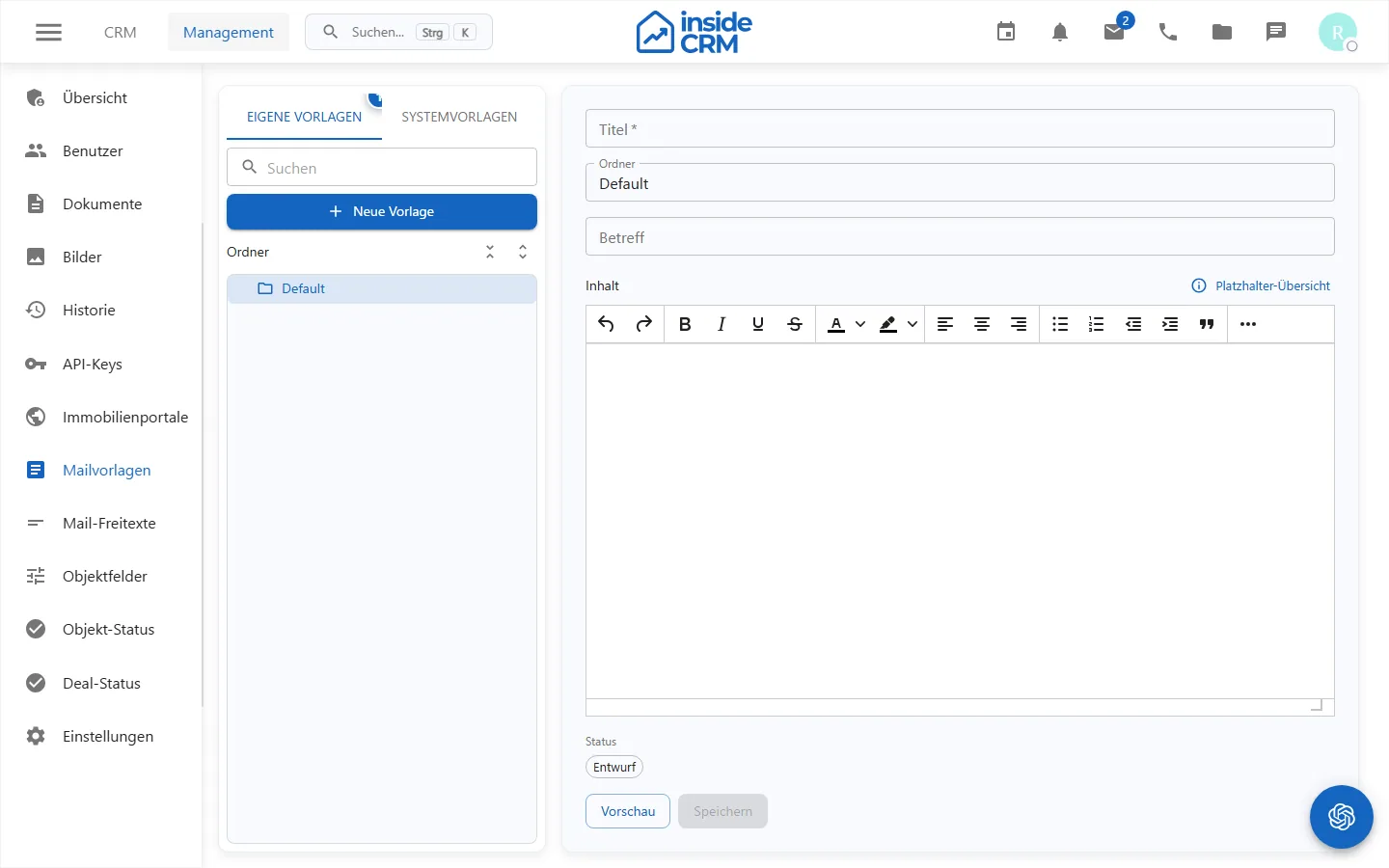
- Templates standardize recurring complete messages. *
Manage reusable text blocks
Arrange short text blocks into understandable folders, maintain visibility and publish status, and check them in the composer.
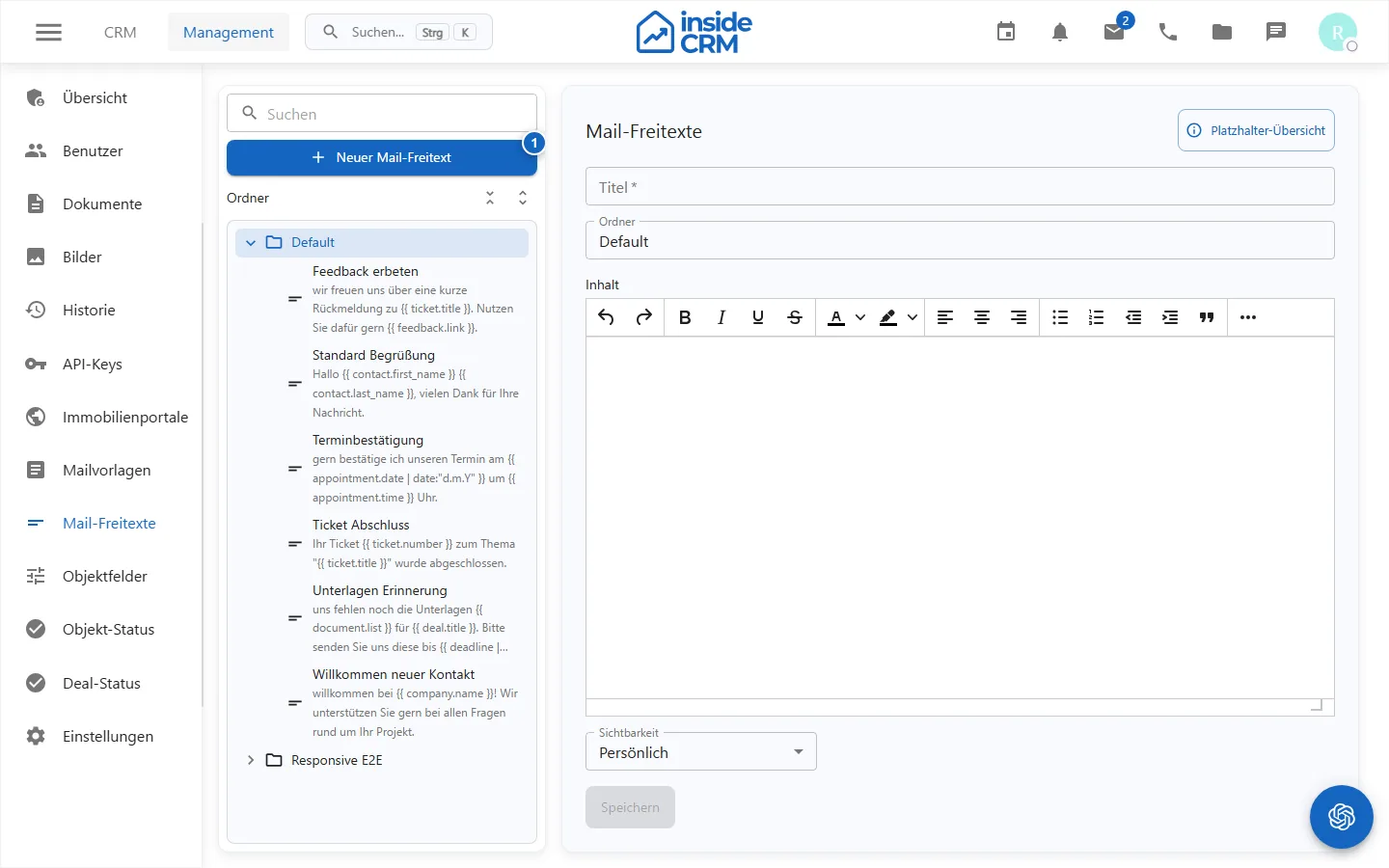
Result
Messages are sent or organized. Accounts and shared content are available to authorized users.
Variations and special cases
OAuth providers can request a new registration. Shipping and synchronization can be processed deferred.
Troubleshooting
Check account status, provider sharing, folder selection, recipient format, and displayed sync or shipping errors.