Calendar and appointments
With calendar.read, the calendar becomes visible. Writing actions depend on personal and central calendar rights.
Create an appointment
- Open Calendar and select New or a period.
- Choose between Appointment and Task.
- Enter the title, start, and end. Add a description, location, status, priority, visibility, reminder, or recurrence as needed.
- Add required and optional internal or external participants.
- Select the sending email account for an invitation.
- Check conflicts in the scheduling assistant and save.
Depending on connected accounts, online appointments can use Microsoft Teams or an inside audio meeting. Invitations and some meeting types require a suitable email account.
Other functions
- Day, three-day, workweek, week, month, and list views
- Acceptance, reservation or rejection of invitations
- Proposing a new time and forwarding an invitation
- ICS import, export, download, and sending
- Recurrence rules and reminders
- Tasks with due dates directly in the calendar
Purpose
The calendar schedules personal and joint appointments, including optional online meetings.
Where to find it
Open calendar in the main navigation.
Requirements and permissions
Viewing requires calendar.read; creating and editing requires calendar.write. External accounts must be connected and valid.
Step by step
- Select the period and calendar view.
- Open an appointment or create it in the desired time window.
- Check title, start, end, time zone, attendees, and online meeting option.
- Save and verify the entry in the calendar view.
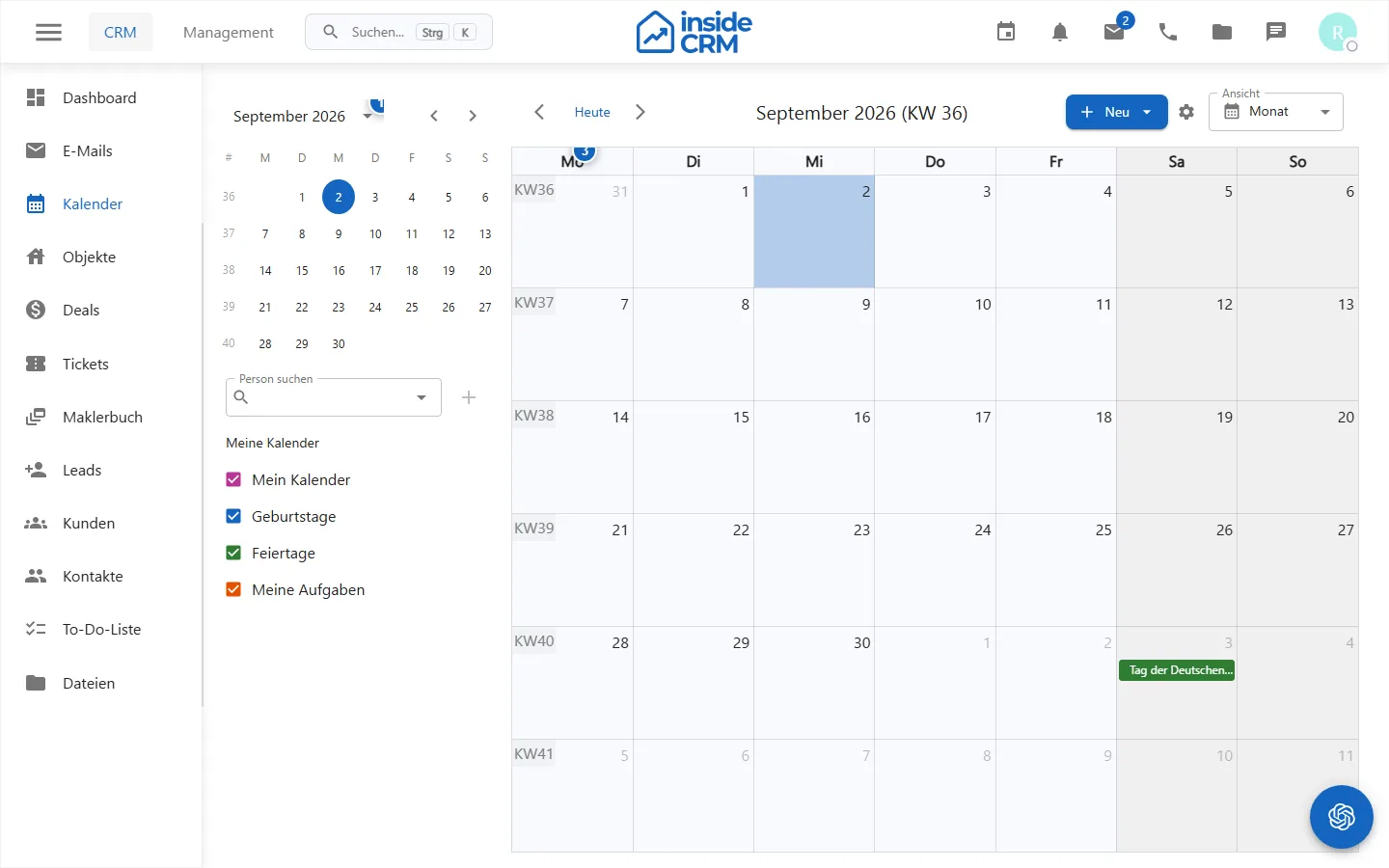
Result
The appointment is stored and is synchronized depending on the account connection or transmitted to participants.
Variations and special cases
Time zones, recurring appointments, and external calendars may have different update times.
Troubleshooting
Check account details, writing rights, time zone and mandatory fields; reload after a short wait if synchronization is delayed.