Planning and completing tasks
The task view requires tasks.read. Creating and editing tasks additionally requires tasks.write in the active workspace.
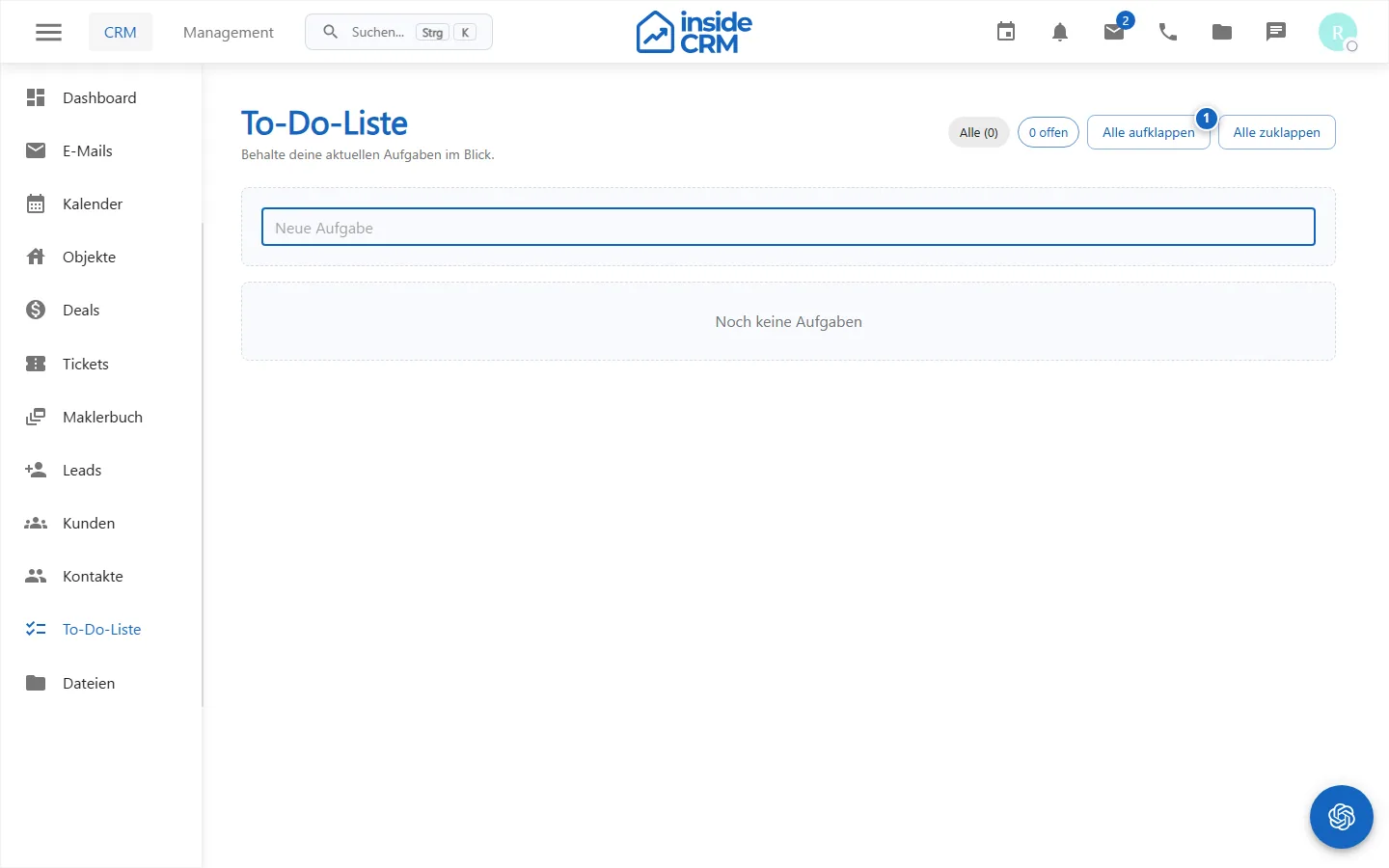
Creating a task
- Open Tasks.
- In the field New task, enter a clear next step.
- If necessary, set a due date with time.
- Optionally link the task to a deal, contact, object or email.
- Choose Add.
Tasks with a due date also appear in the calendar. Due and overdue entries are highlighted and can trigger a notification.
Processing tasks
- Set the hook to complete or reopen a task.
- Open the details to change the text, due date, or linked record.
- Drag entries into the desired order.
- Fold in or out all the details for a quick overview.
- Only delete tasks that are no longer required to be proven.
Purpose
Tasks record personal or linked work with a clear due date and completion status.
Where to find it
Open Tasks. Due entries can also appear in the calendar.
Requirements and permissions
Reading requires tasks.read, creating, sorting, closing and deleting tasks.write.
Step by step
- Filter open or due tasks.
- Create a specific task with text, due date and optional link.
- Edit details or order when planning changes.
- Mark them as complete after actual completion.
Result
The task has a current status and remains traceable within its business context.
Variations and special cases
Due date tasks also appear in the calendar. Reopening resets an accidentally set closure.
Troubleshooting
If entries or actions are missing, check the filters, due-date range, enabled module, and tasks.write permission.