Processing and organizing tickets
Viewing requires tickets.read; creating and editing requires tickets.write.
Create a ticket
- Open Tickets and select New Ticket.
- Capture a clear title and comprehensible description.
- Select a status and type; optionally add priority, due date, assignee, watchers, progress, and effort.
- If necessary, link Lead or Customer, Deal and Object.
- Add additional fields and save.
In the ticket, comments can be added and the linked records can be opened directly.
Use the overview
The list view provides search, configurable columns, and filters by status, type, priority, assignment, and date ranges. In Board View, group by status, assignment, priority, or type and move tickets between columns.
Board quick actions can assign the ticket to you, set today's due date, or mark it as complete. After moving a card, check the confirmation because the grouped value changes immediately.
Ticket projects
The project overview and the page of a single project bundle together tickets. Only projects and tickets for which the workspace grants access are visible.
Purpose
Tickets organize structured requests and work. Projects group related tickets.
Where to find it
Open Tickets or Tickets → Projects.
Requirements and permissions
Reading requires tickets.read; creating and editing requires tickets.write. Individual fields may have additional visibility rules.
Step by step
Process tickets
- Search or filter by status, type, priority, assignment or date.
- Open a ticket or create one with a title, description, and appropriate assignments.
- Maintain status, priority, responsible, due date, comments and custom fields.
- Save and verify the change in the list or board.
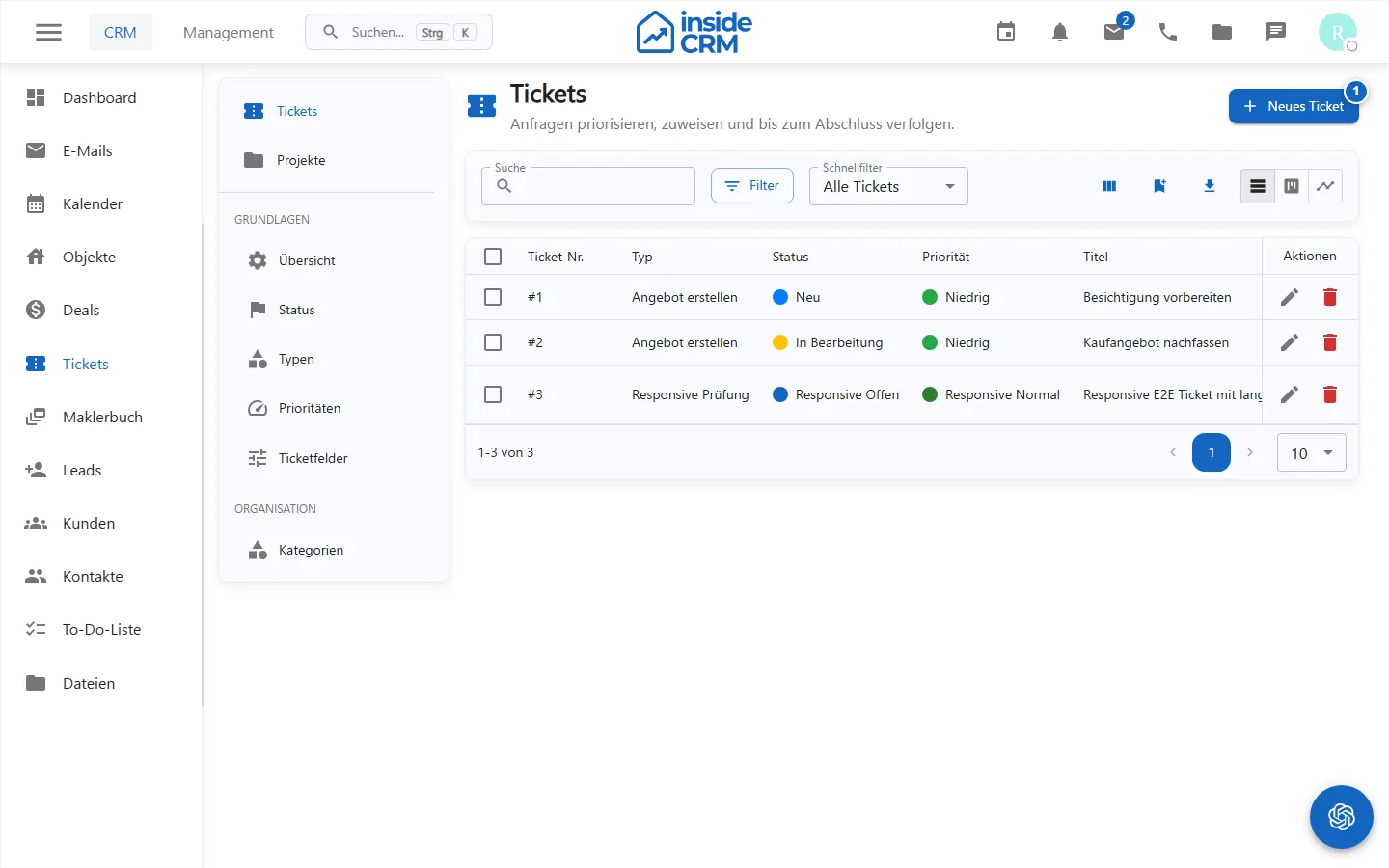
Ticket projects organize
- Open the project overview and choose the project.
- Check included tickets, statuses and responsibilities.
- Open the relevant ticket to make detailed changes.
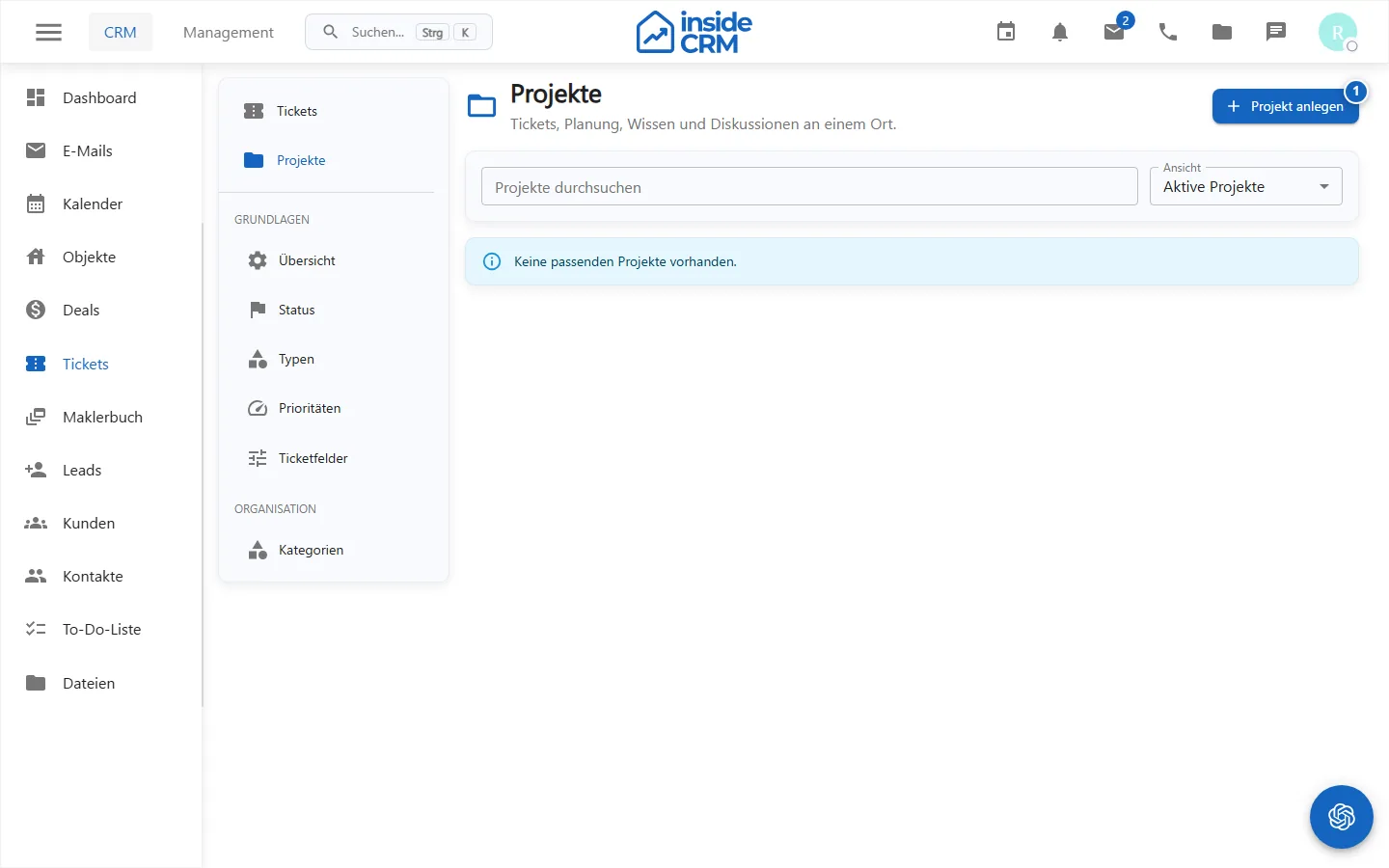
Result
Ticket and project view show the current status and the responsible persons.
Variations and special cases
Drag-and-drop on the board changes the grouped value immediately. Quick actions can directly set the due date, assignee, or completion status.
Troubleshooting
Check active filters, project access, write permissions, and required fields. Reload the board if a move is not visible.