Profile, password and notifications
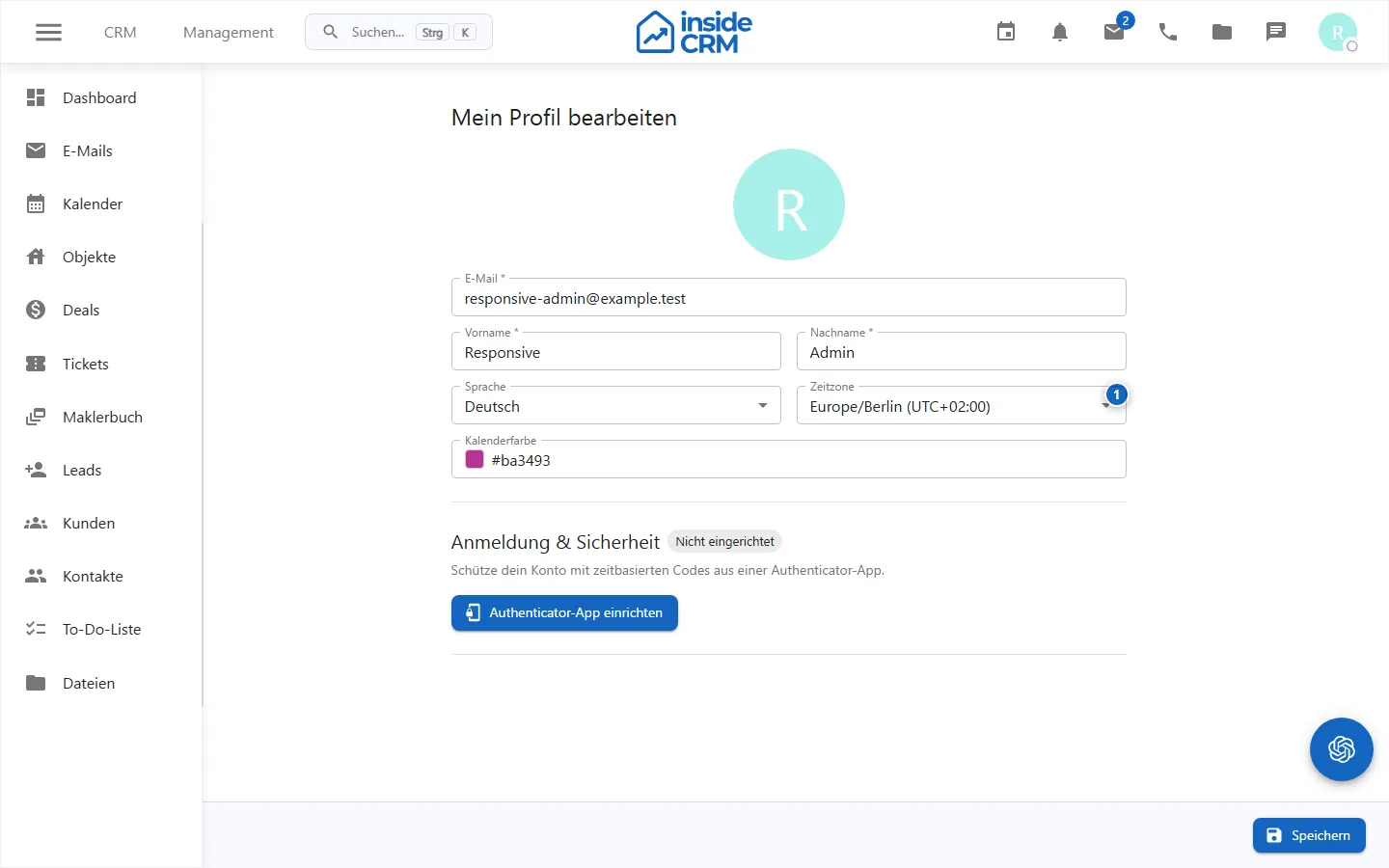
Edit your profile
- Open from the personal menu Profil.
- Check email address, first name, last name and optionally the phone number.
- Save the change.
First name, last name and email address are mandatory information. If single sign-on is used, individual security functions can be centrally controlled and therefore not available in the profile.
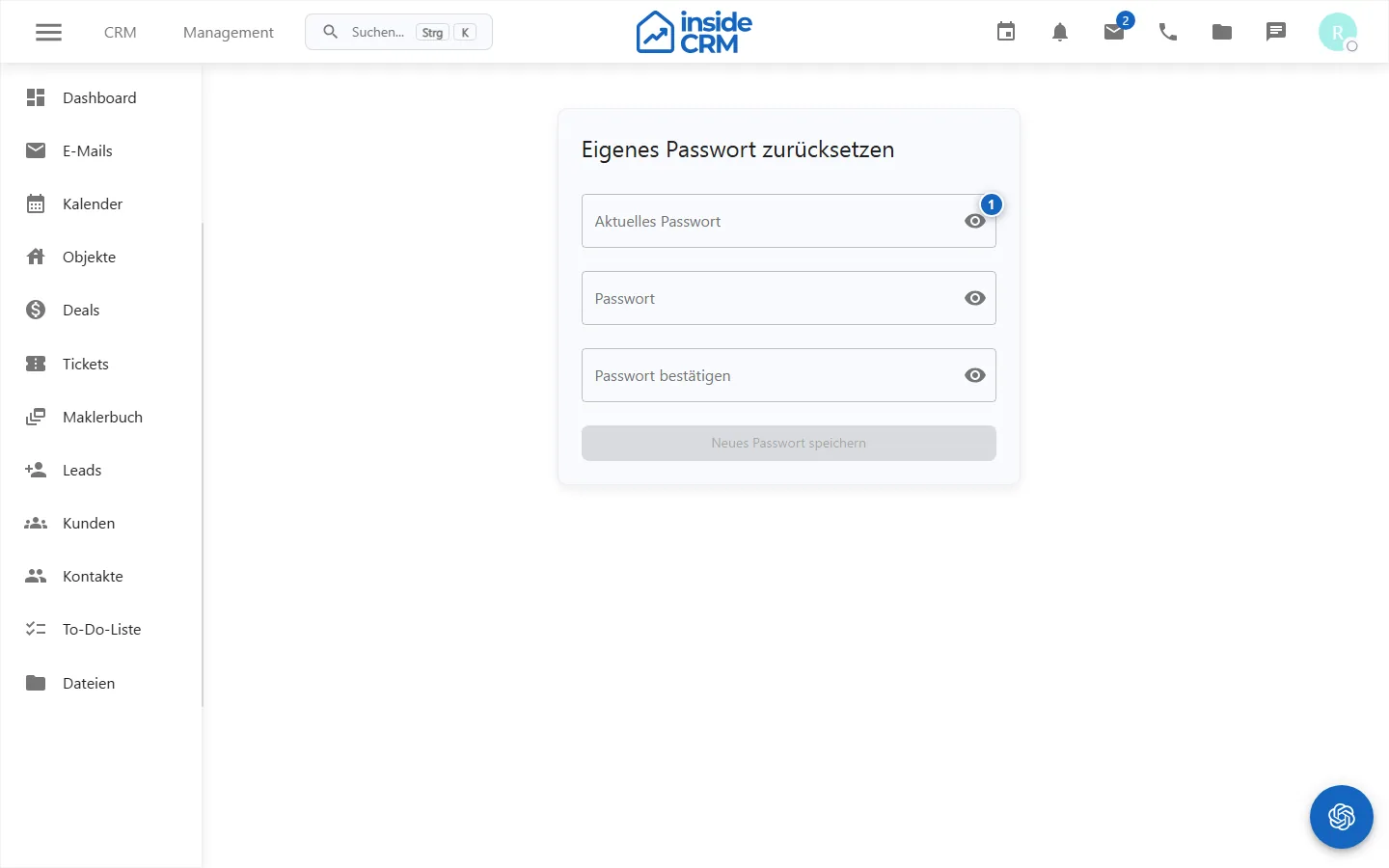
Reset the password
Open Reset password, enter the requested access data and confirm the change. Use a unique password and do not share it with other people. At SSO, the specifications of the connected identity provider apply.
Set notifications
In notifications, general hints, tones and browser system notifications can be controlled. Depending on the active modules, there are dedicated counters for email, calendar, chat, tasks, tickets and incoming calls.
For browser push, the browser must allow website permission. A permission blocked in the browser cannot be activated again in Inside alone.
Purpose
In this area, you maintain personal master data, protect access and determine which information Inside may issue.
Where to find it
Open the personal menu and select Profile, Reset password or Notifications.
Requirements and permissions
All registered users are allowed to edit their own settings. SSO and browser policies can specify individual options centrally.
Step by step
Editing profile
- Check your name, email address and phone number.
- Change only the required fields and save.
- Check the success message and the display in the personal menu.
Reset password
- Open Reset password.
- Enter current and new password according to the displayed rules.
- Confirm the change and re-register for an expired session.
Setting up notifications
- Activate only the technically required channels and module types.
- Allow browser push if system notifications are desired.
- Save and trigger a non-hazardous test notification if necessary.
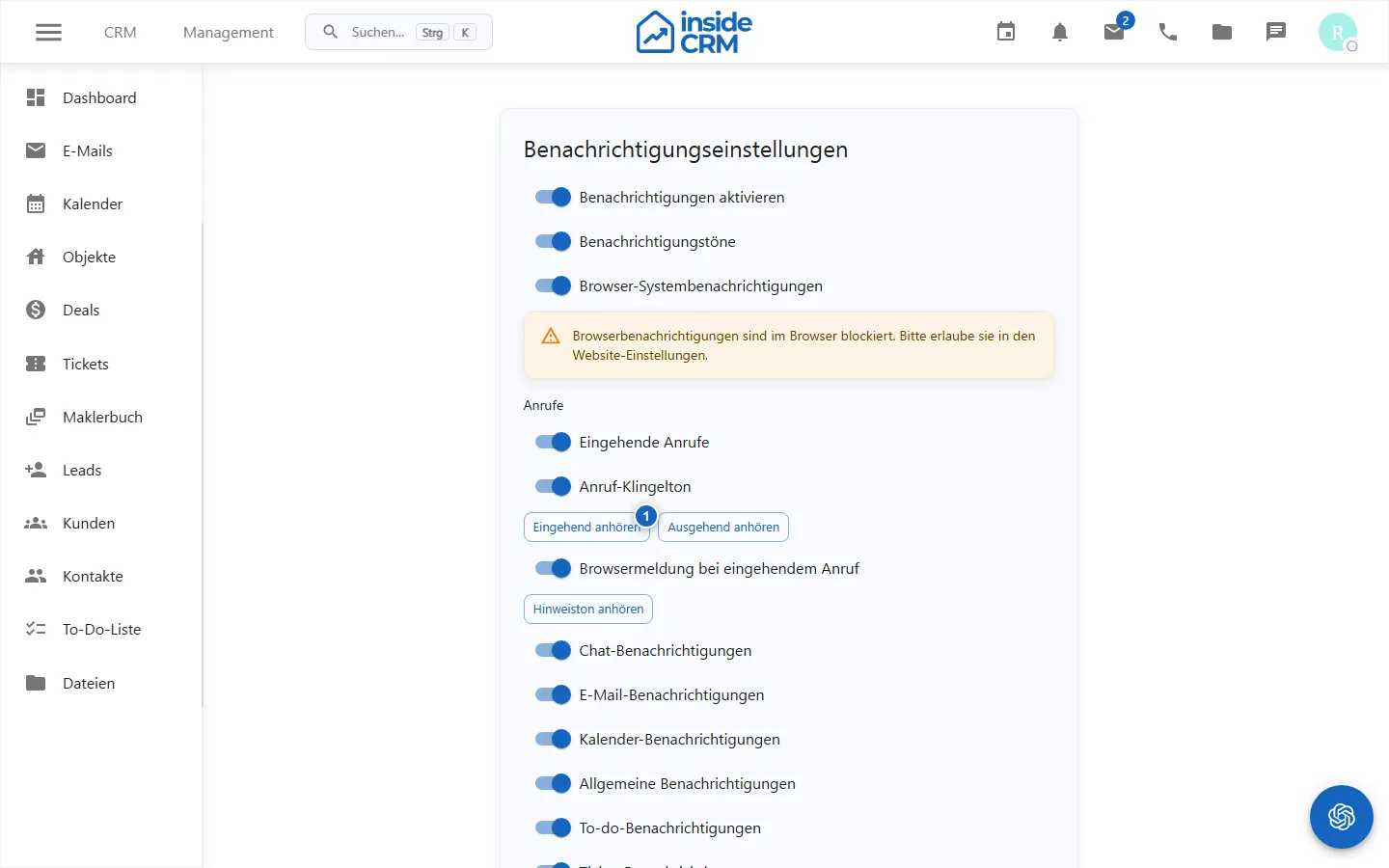
- Browser sharing and inside setting must be active together. *
Result
Saved profile data and notification settings apply directly to your own account.
Variations and special cases
With SSO, email addresses or passwords cannot be changed locally. Blocked browser push rights must be corrected in the browser’s website settings.
Troubleshooting
In the event of missing information, first check inside switches, browser permission, operating system focus mode and permission for the module in question.