Manage files and folders
The file view requires files.read; uploads and changes require files.write.
Upload files
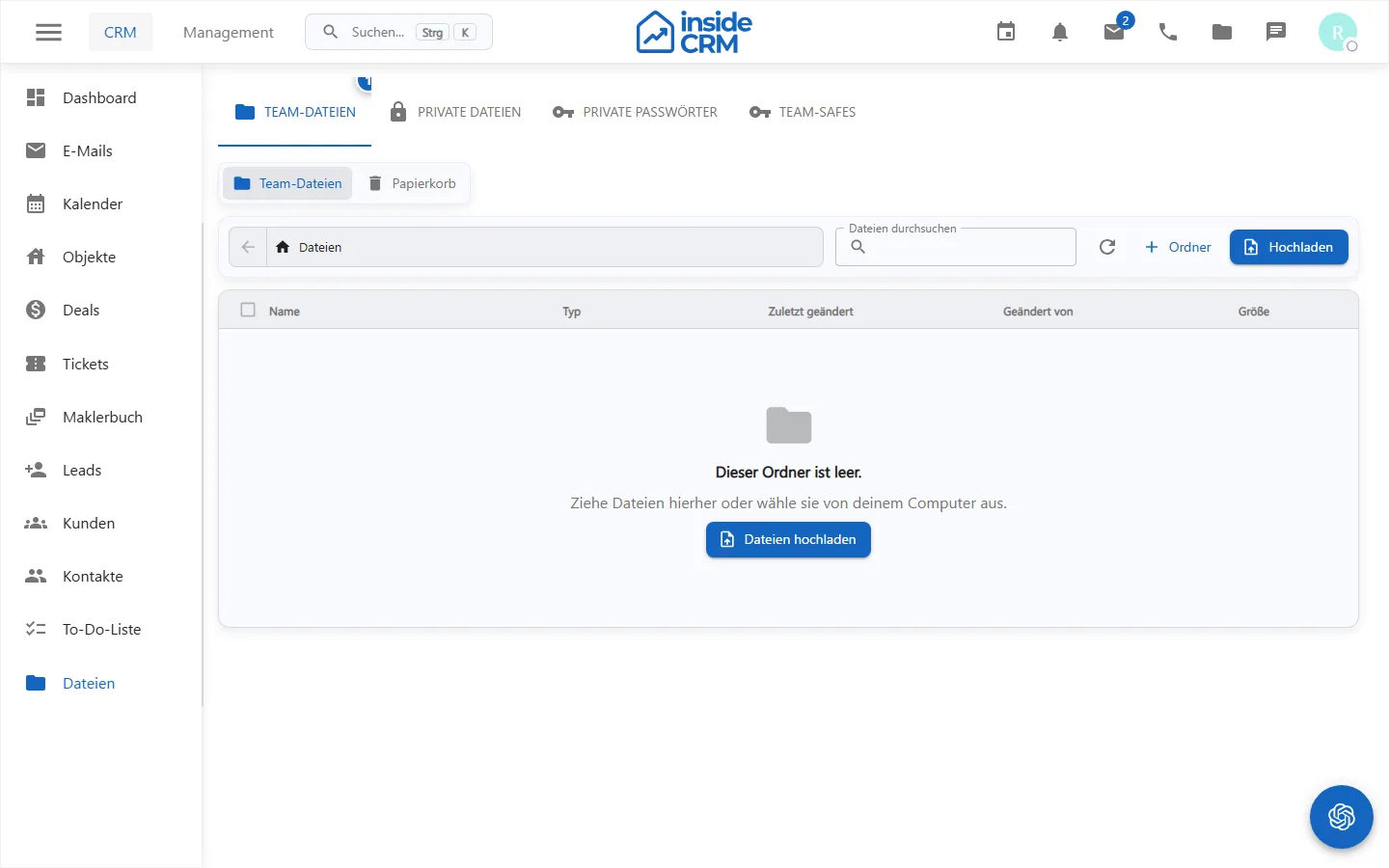
- Open files and navigate to the destination via folders or breadcrumb navigation.
- Drag files into view or select the upload action.
- Watch the progress of the upload queue.
- In a name conflict, deliberately decide between replacing, renaming, skipping or canceling.
- Check the file in preview or download after the upload.
Organize and restore files
You can search, create or rename folders, move files and folders, select multiple items and open file versions. Deleted elements first end up in the trash and can be restored. Delete permanently removes it from file view.
Good filing practices
- Use comprehensible folder and file names.
- Place sensitive documents only in the intended workspace and with the appropriate authorization.
- Before mass actions, check the selection and destination folder.
- Download executable or unknown files only from trusted sources.
Purpose
The file area organizes workspace files, folders, shares, trash and restore.
Where to find it
Open files in the main navigation.
Requirements and permissions
Viewing requires files.read; uploads, folder actions, moving, and deletion require files.write.
Step by step
- Navigate to the intended destination folder.
- Upload files or create a uniquely named folder.
- Check selection and goal before moving, downloading, or trash actions.
- Recover accidentally removed files from the Trash as long as they have not been permanently deleted.
Result
Files are located in the intended workspace path and are available according to the permissions.
Variations and special cases
Large uploads, virus checks and document previews can be completed deferred. Final deleted files are not recoverable via the surface.
Troubleshooting
Check the file size, type, storage limit, write permission, and upload status. Reload the folder view after processing is complete.