Mobile working views
Goal and requirements
Complete prioritised work on the mobile device and recognise which changes have synchronised. You need the current app version, an active workspace, network access for synchronisation and the relevant module permissions.
Android and iOS only show modules that are enabled for product, client and account. Navigation, push targets, and offline state build on the same permission logic.
Today view
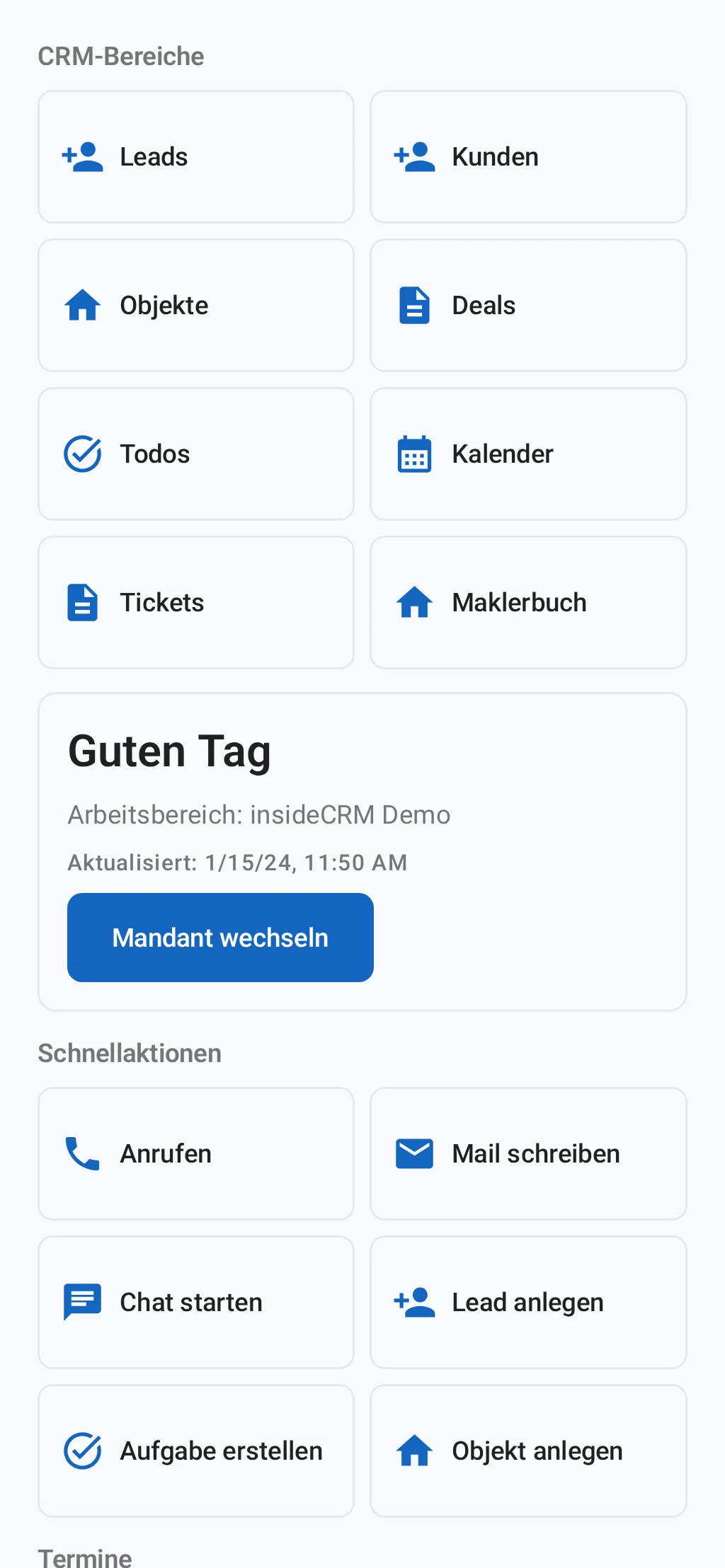
The insideCRM app bundles in Today the most important CRM events for the working day.
- Open Today via the main mobile navigation.
- Update the view by dragging down if you have just changed data on another device.
- Open an entry to continue working in the relevant area.
- Return to the prioritized list with system navigation.
Mobile Inbox
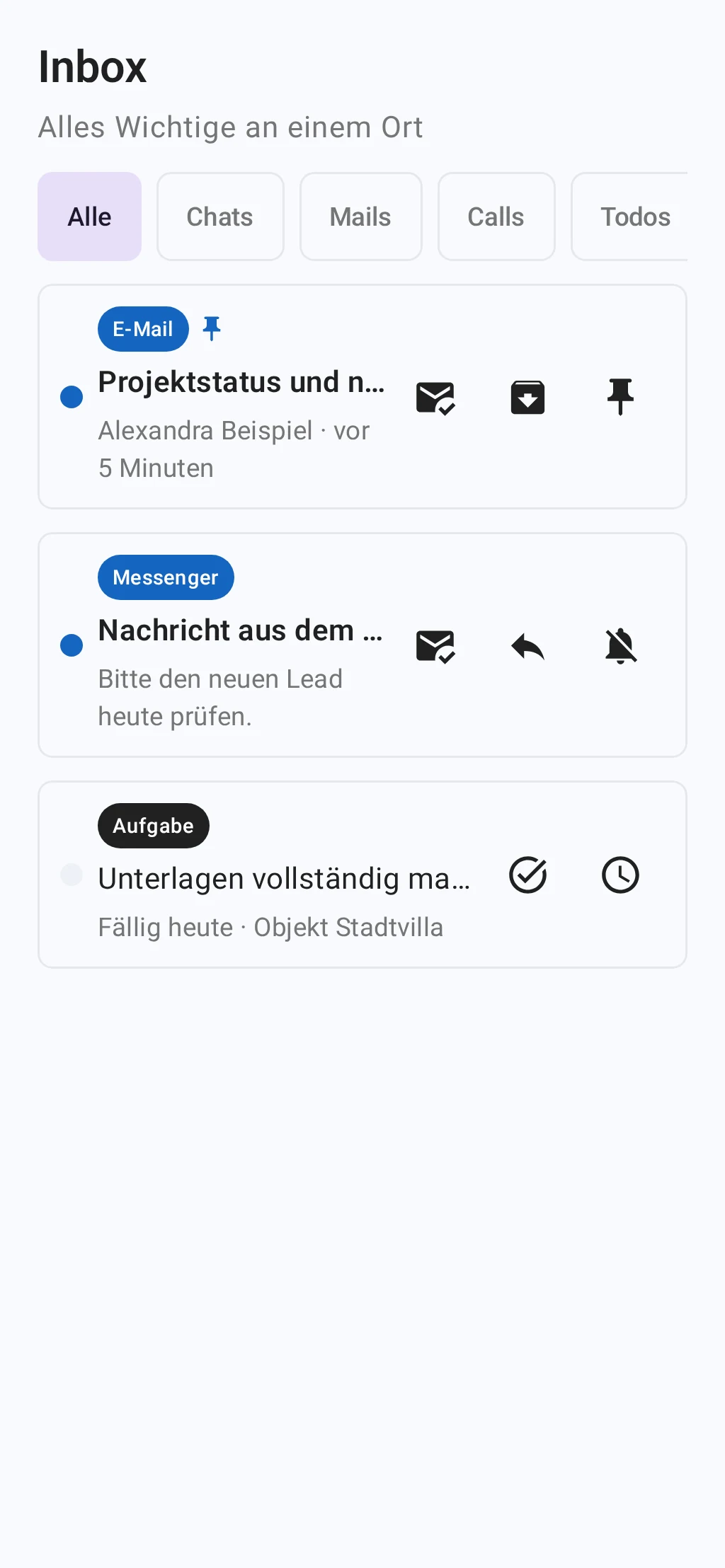
- Open Inbox or tap an associated push message.
- Check sender, time, client and event type before you act.
- Open the target and complete the task in the relevant module.
- Update the inbox. A completed tray element can still appear briefly in the cache.
Global search
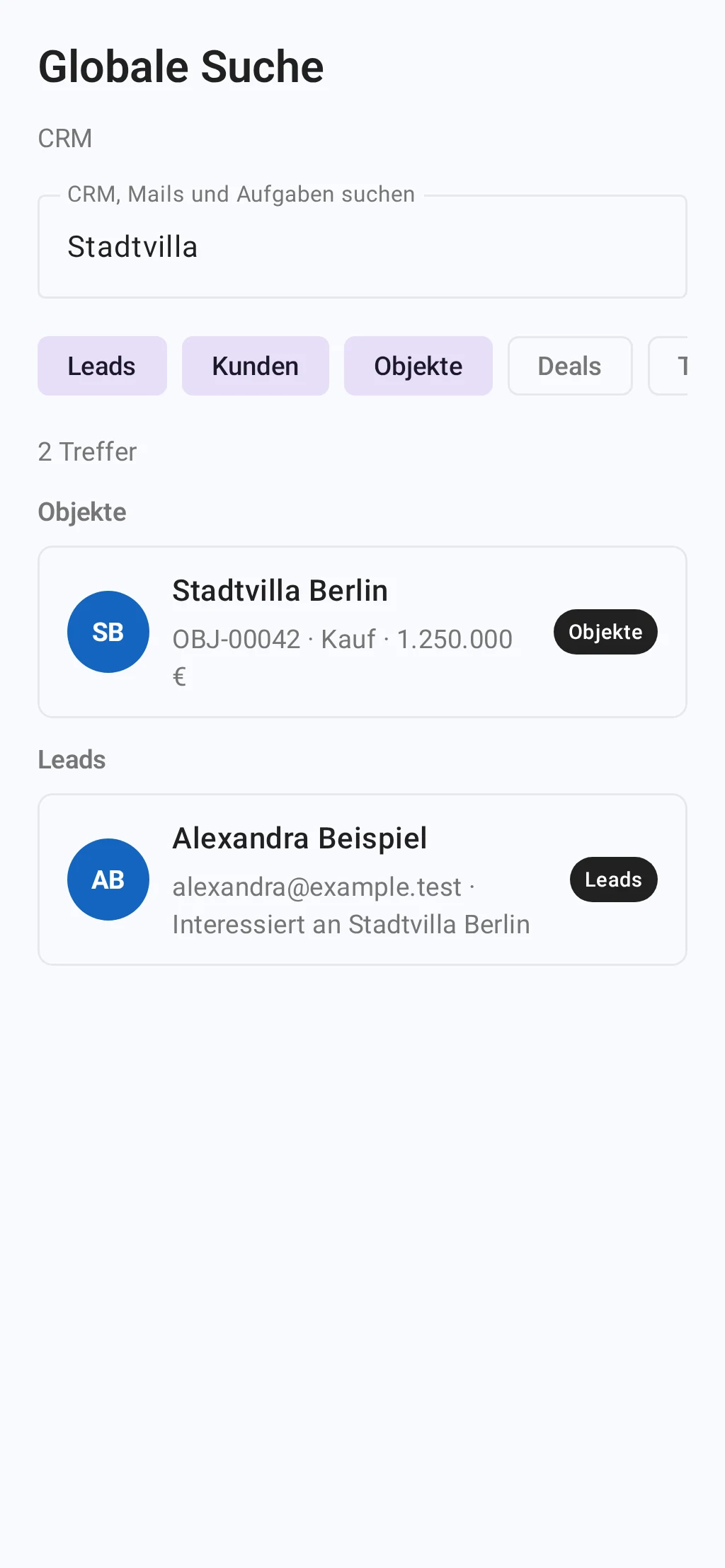
The global search is available in insideCRM and searches the activated CRM areas.
- Open Search and enter a unique name, number or other key.
- Limit the hits via the displayed record type.
- Open the result and verify its key details before editing it.
- If a hit is missing, check network, spelling, tenant and read permission.
Result
Relevant work is prioritized for mobile use and opens the correct record without bypassing the web application's permissions.
Offline, synchronization and security
- An offline indication means that data may be obsolete. Confirm critical changes only after successful synchronization.
- Push messages may contain confidential notices. Activate a device lock and hide previews on the lock screen if necessary.
- Signing out or clearing app data removes locally stored session data; unsynchronized drafts can be lost.
Troubleshooting
- A module is missing: Check the active workspace, your role, and the enabled product capabilities.
- Data appears outdated: Restore the network connection and refresh the view again.
- A push target does not open: Open the relevant area from the main navigation and check whether the record still exists.
- The app remains empty after signing in: Sign out, restart the app, and select the workspace again.